The essentials
- Fripr is an extension for Chrome, Brave or Edge, on desktop. You need a Vinted account, logged in on that browser.
- In four moves: open your Vinted wardrobe, click the Fripr icon, load your listings, tick the ones to bump and press Start.
- For each listing, Fripr publishes an identical copy, checks that it’s online, then deletes the old one. It pauses for a few minutes between two listings.
- The Free plan allows 5 reposts a month, with no account and no bank card.
- With Pro or Boutique, Fripr can also bump your listings by itself, every day, at the time you choose (scheduled reposting).
1. Install the extension
Before you start, check that you have:
- a computer (Windows, Mac or Linux) with Chrome, Brave or Edge;
- a Vinted account that you’re logged in to on that same browser.
Mobile browsers, Firefox and Safari aren’t supported.
- Open the Fripr page on the Chrome Web Store.
- Click “Add to Chrome” (or “Add to Brave”, “Get” on Edge), then confirm with “Add extension”.
- Pin Fripr to keep it at hand: click the puzzle-piece icon at the top right of the browser, then the pin next to Fripr. Its icon then appears next to the address bar.
On Edge, the browser may ask you to “allow extensions from other stores”: accept, it’s needed to install an extension from the Chrome Web Store.
2. Get to know the Fripr panel
Click the Fripr icon: its panel opens. The first time, it looks like this:
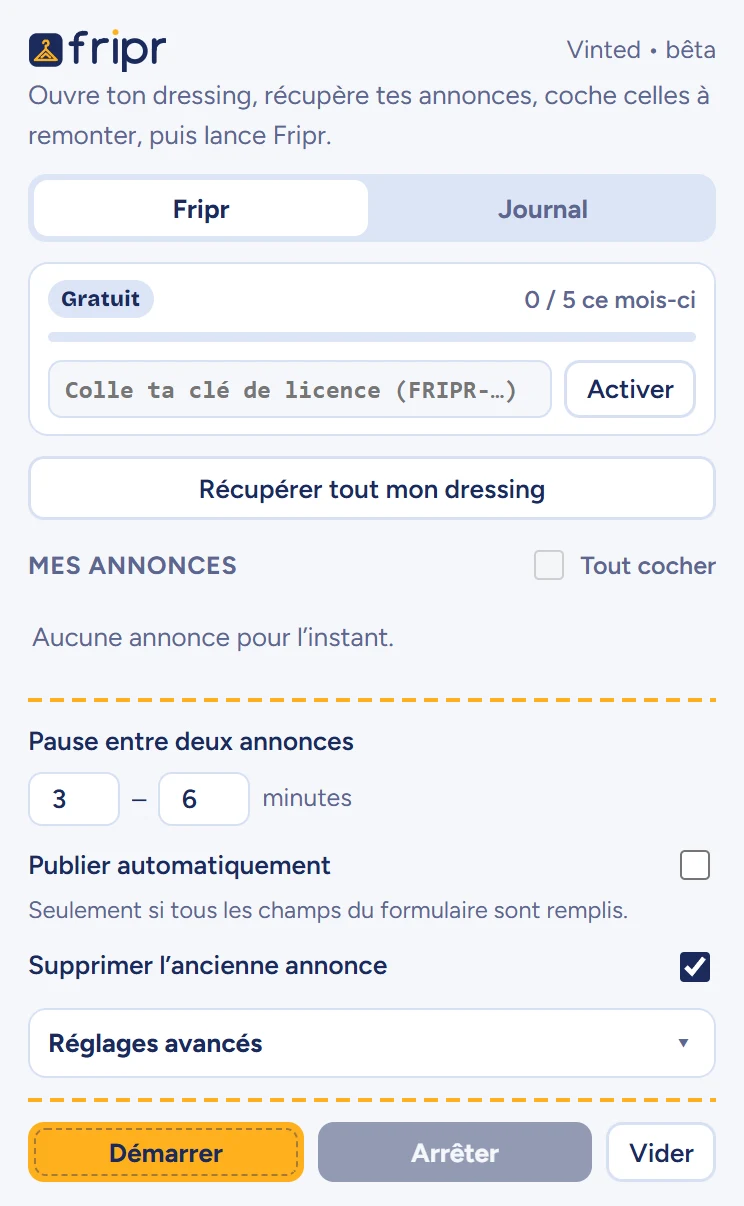
From top to bottom, you’ll find:
- your plan (Free, Pro or Boutique) and the number of reposts used this month, with the field to paste a licence key;
- the “Load my whole wardrobe” button and the list of your listings;
- the settings: pause between two listings, automatic publishing, deleting the old listing;
- the Start, Stop and Clear buttons (Clear empties the list);
- at the top, the Log tab, which tells you everything Fripr does.
3. Load your listings
- On Vinted, open your profile page, the one that shows all your listings (your wardrobe). Its address looks like
vinted.co.uk/member/12345678-yourusername. - Click the Fripr icon, then “Load my whole wardrobe”.
- Fripr scrolls through your wardrobe to load all your listings (up to 1 min 30 for a large wardrobe). A banner shows its progress: leave the page open.

Your listings then appear in the panel, all ticked, except those that have favourites:
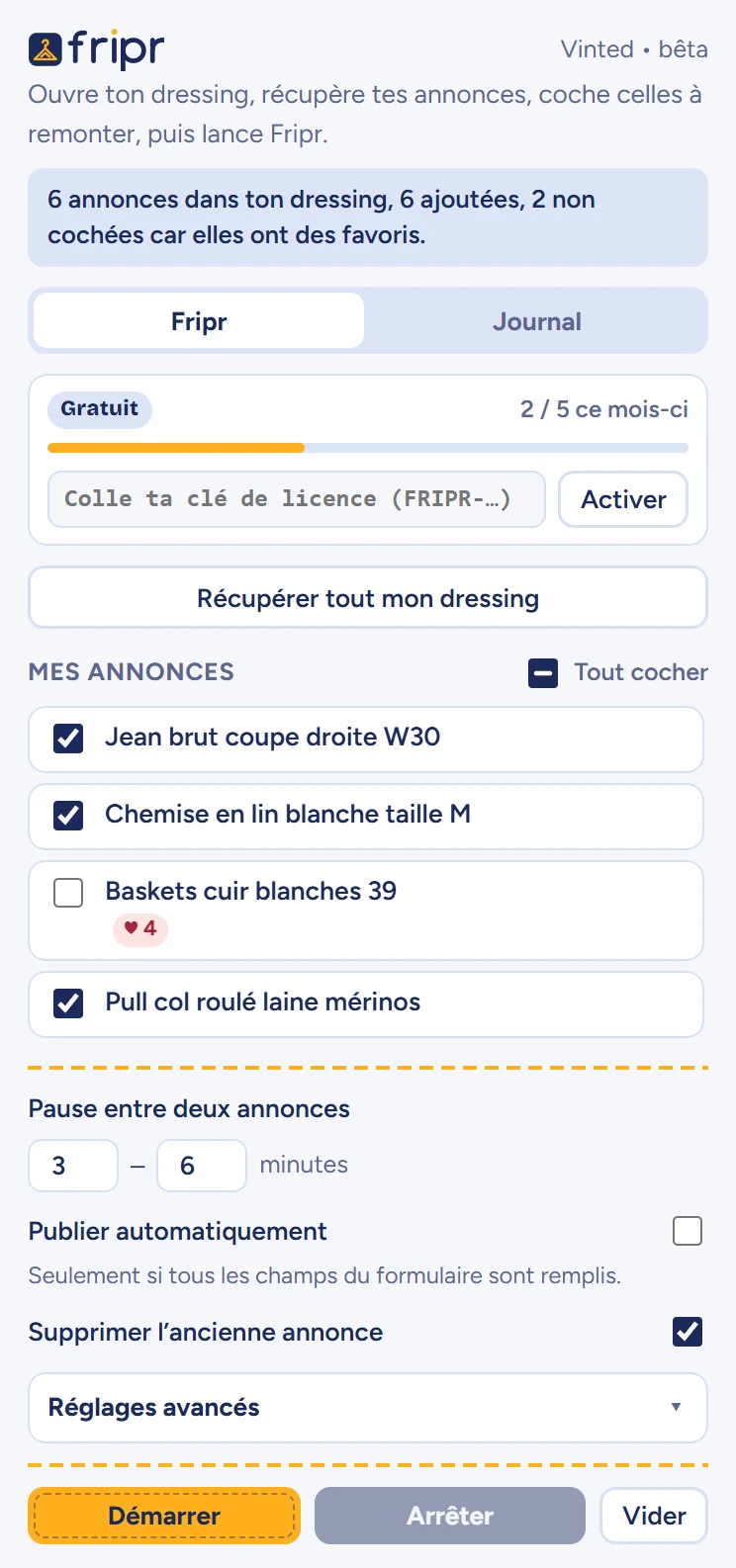
- Tick or untick each listing, or use “Select all”.
- Why are listings with favourites unticked? A reposted listing is a new listing: it loses its favourites, and interested buyers can no longer find it. It’s up to you whether to bump it anyway.
- You can run “Load my whole wardrobe” again at any time: sold or deleted listings disappear from the list, new ones are added, and your ticks are kept.
4. Set up Fripr
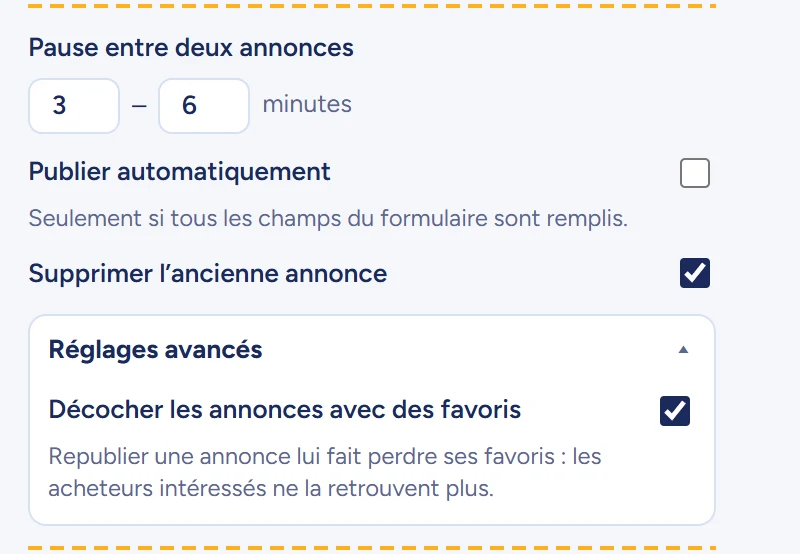
- Pause between listings: Fripr waits for a random time within this range before the next listing. By default, 3 to 6 minutes.
- Publish automatically: when off, Fripr fills in the form and lets you check it, then click “Upload” on Vinted yourself. When on, it clicks for you, but only if every field of the form is filled in. Start without it, to check that everything is copied properly.
- Delete the old listing: on by default. Fripr only deletes the old one after spotting the new one online.
- Untick listings that have favourites (advanced settings): on by default.
5. Start reposting
Tick the listings to bump and click Start. For each listing, Fripr:
- opens the listing in a new tab and reads its content: photos, title, description, price, category, brand, size, condition, colour and material;
- opens Vinted’s new listing form and fills it in;
- publishes the new listing: by itself if “Publish automatically” is on, otherwise you click “Upload” in the open tab;
- waits until it sees the new listing online, then deletes the old one;
- closes the tab, pauses, and moves on to the next listing.
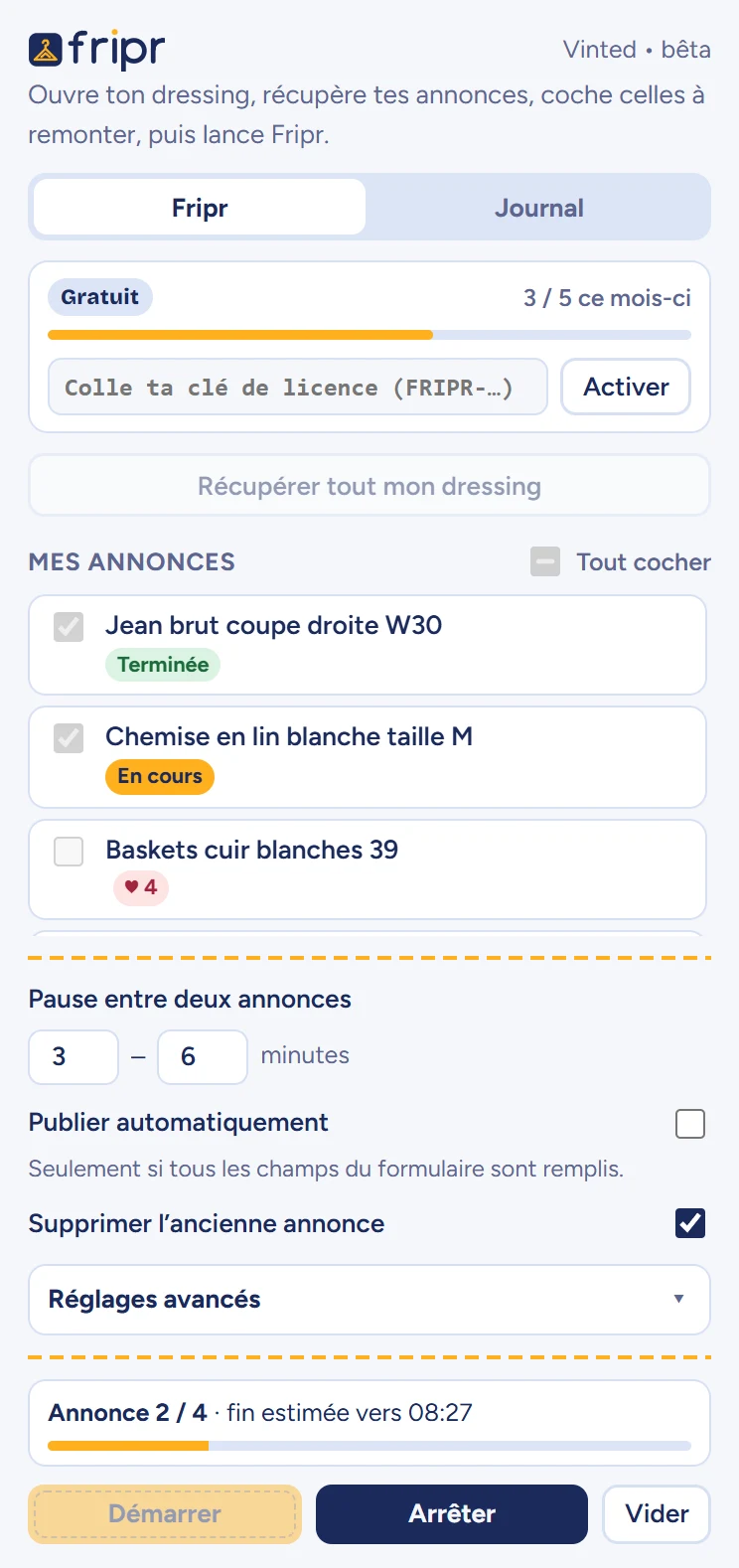
- You can close the panel: Fripr carries on in the background. The Fripr icon shows the number of listings left, and a notification lets you know when it’s done.
- Keep the browser open and the computer on (not asleep) until the end. Don’t close the working tab opened by Fripr.
- Stop interrupts the run at any time. If you stop during publication, Fripr tells you in the log whether to check for a duplicate in your wardrobe.
- If an error happens before publication (nothing was changed on Vinted), Fripr moves on to the next listing. After three errors in a row, it stops as a precaution.
Tip: the first time, run Fripr on a single listing, without automatic publishing, and check the result in your wardrobe.
6. Follow along in the log
The Log tab describes every step: listing read, form filled in, new listing detected, old one deleted, pause. A dot flags new lines.
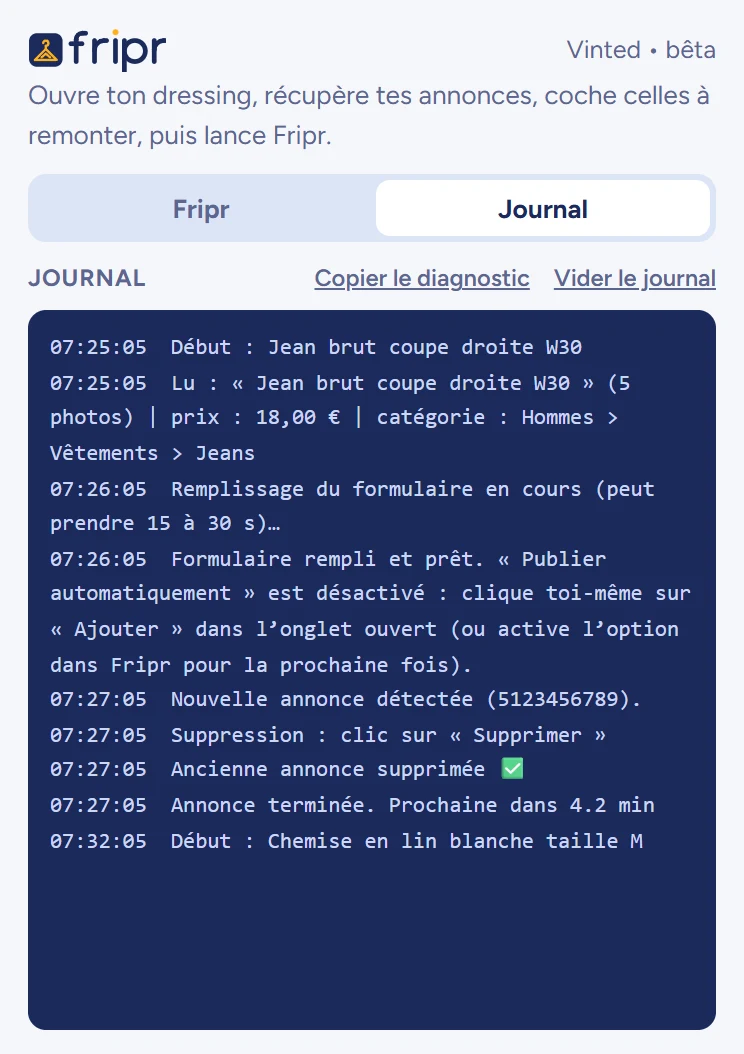
Something wrong? Click “Copy diagnostics” and paste it into an email to contact@fripr.fr. It contains the extension version, your settings and the log, but never your full licence key.
7. Upgrade to Pro or Boutique
- Choose your plan in the pricing. You land on the My account page: create your account, fill in your billing details, then pay.
- Your licence key shows up straight away in your account (it’s also emailed to you). Click Copy.
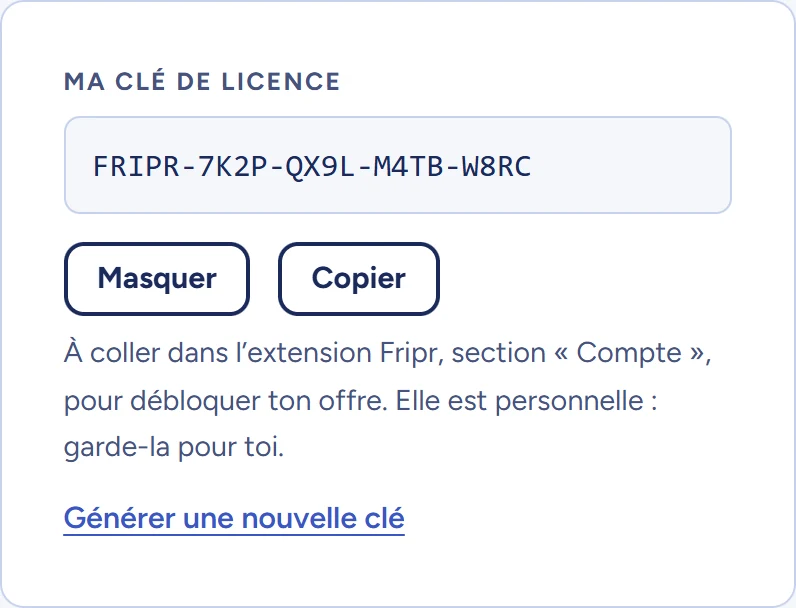
- Open the Fripr panel, paste the key into the “Paste your licence key” field and click Activate. Your plan and quota appear:
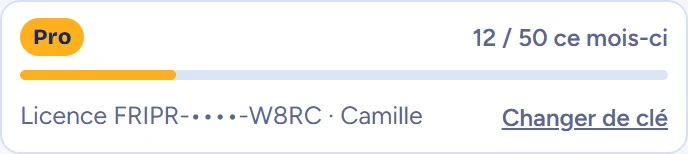
- Your key links to your Vinted account the first time you start Fripr with it: 1 Vinted account for Pro, up to 3 for Boutique, on as many computers as you like. You’ll find your linked accounts on the My account page.
- Shared your key by mistake? On the My account page, click “Generate a new key”: the old one stops working right away. Then paste the new one into the extension.
- To cancel, download your invoices or change your card: the My account page.
8. Quotas and Vinted accounts
| Plan | Reposts per month | Vinted accounts |
|---|---|---|
| Free | 5 per Vinted account | No limit |
| Pro | 50 | 1 |
| Boutique | Unlimited | Up to 3 |
- Only successful reposts count. The counter resets on the 1st of each month.
- If you select more listings than you have left, Fripr handles what it can, then stops and tells you. The remaining listings wait in the list.
- To remove a Vinted account linked to your licence and use another one: My account page, “Linked Vinted accounts” box, once every 30 days.
9. Track my sales (Pro and Boutique)
The My account page, “My sales” tab (also in the “My account” menu at the top of the site), shows your Vinted sales over the last 12 months: number of sales, revenue, average order value, sales per month and latest sales. Above all, it shows the share of sales made on listings reposted by Fripr.
- Sales are imported by the extension when you load your wardrobe (at most every 6 hours). To update them right away: open a Vinted page, then click “Update my sales” in the Fripr panel.
- Fripr reads the sales of the logged-in Vinted account. That account must be linked to your licence.
- “Via Fripr” only counts listings reposted since this dashboard went live.
- “Download the file” button: your sales over the last 12 months or a calendar year, in a file that opens in Excel or Google Sheets. Handy for your bookkeeping.
- Nothing about your buyers is read or kept. Details in the privacy policy.
10. Scheduled reposting (Pro and Boutique)
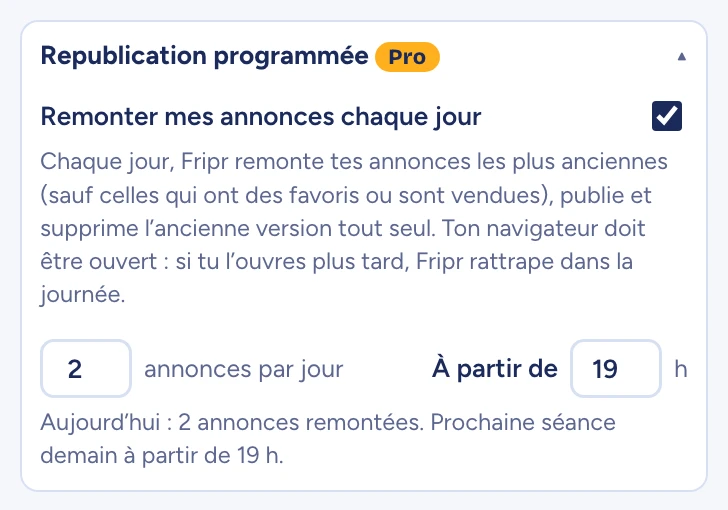
Instead of starting Fripr yourself, you can let it bump your listings every day, at the time you choose. It takes the oldest ones, reposts them, deletes the old version, then closes the tab. There’s nothing to tick. To choose the time and pace, read When to post on Vinted.
Switch scheduled reposting on
- Activate your Pro or Boutique licence (see Upgrade to Pro or Boutique). With the Free plan, the section is visible but greyed out.
- Open your Vinted wardrobe and click “Load my whole wardrobe”, if you haven’t already: this is the wardrobe Fripr will bump every day.
- In the Fripr panel, open “Scheduled reposting” and tick “Bump my listings every day”. The setting is off by default.
- Choose the number of listings per day (1 to 20, 2 by default) and the start time (19:00 by default). Changes are saved immediately.
How Fripr picks the listings
- At the planned time, Fripr opens your wardrobe in a new tab and reads all your listings again, with their up-to-date favourites.
- It leaves out listings that are sold or reserved and, if the advanced setting “Untick listings that have favourites” is on (it is by default), those that have favourites.
- Among the others, it takes the oldest ones. A reposted listing becomes the newest: it goes to the back of the line, and all your listings take their turn.
- It reposts them one by one, with the pauses set in “Pause between listings”, then sends you a notification with the summary.
- Automatic publishing and deletion: during a scheduled session, Fripr clicks “Upload” itself and deletes the old listing, whatever the “Publish automatically” and “Delete the old listing” settings. If a field couldn’t be filled in, it waits for you to complete it, and the old listing is never deleted before the new one is online.
- Your browser must be open. If it was closed at the planned time, the session takes place as soon as you reopen it, the same day. Only one session a day, even if it was interrupted.
- Fripr opens a tab while it works and closes it by itself. You can keep browsing, but don’t close that tab: the session would stop.
- Each bumped listing counts towards your monthly quota. If your quota is used up, Fripr doesn’t start the session and says so in the panel.
- Fripr bumps the last wardrobe loaded. With several Vinted accounts (Boutique), load the one you want to schedule. The Vinted account must be linked to your licence, just like for a reposting started by hand.
- To stop a session in progress, click Stop in the panel. To stop scheduling altogether, untick “Bump my listings every day”.
Good to know: the summary under the settings tells you when the next session will take place, or what Fripr did today. If a session couldn’t take place (quota used up, wardrobe not loaded yet…), the reason is shown in red, with the details in the log.
11. Offers to favourites (Pro and Boutique)
When a member adds one of your listings to their favourites, they’re often hesitating over the price. Fripr can send them a discounted offer automatically, with a short message, without you having to watch your notifications. To choose your discount and message well, read Turning your Vinted favourites into sales.
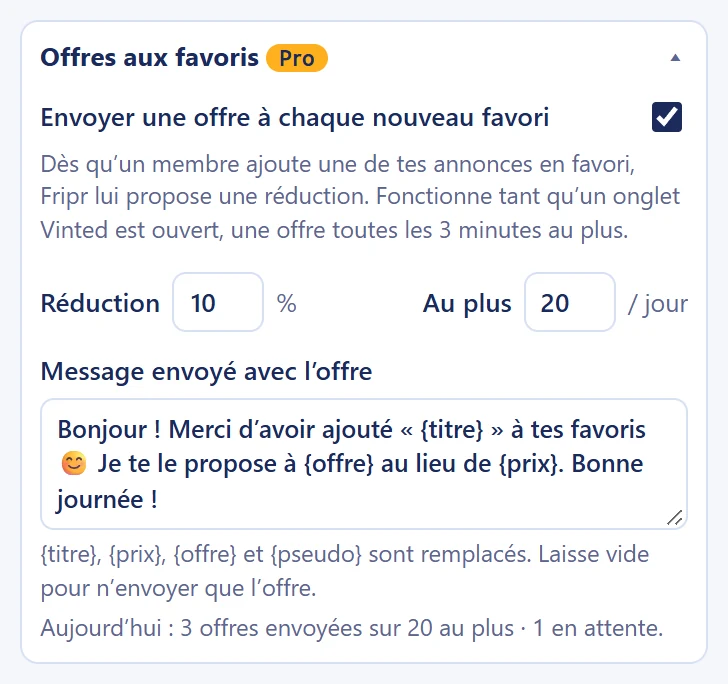
Switch offers on
- Activate your Pro or Boutique licence (see Upgrade to Pro or Boutique). With the Free plan, the section is visible but greyed out.
- In the Fripr panel, open “Offers to favourites” and tick “Send an offer for every new favourite”. The setting is off by default.
- Choose the discount, the number of offers per day and your message (details below). Changes are saved immediately.
- Keep a Vinted tab open (any page, logged in to your account): that’s the tab Fripr uses to read your favourites and send offers.
The settings
- Discount: 5 to 50%, 10% by default. It applies to the listing’s current price and the amount is rounded down to the cent (€19.99 at −15% gives €16.99). No offer is made below €1.
- At most … / day: 1 to 100 offers a day, 20 by default. Once the limit is reached, further favourites wait until the next day.
- Message sent with the offer: up to 1,000 characters. These words are replaced automatically:
{title}: the listing title;{price}: its current price, for example “€18.00”;{offer}: the price offered, for example “€16.20”;{username}: the member’s username.
Example: with the default message and a dress at €18.00, the member gets an offer at €16.20 and the message “Hi! Thanks for adding “Floral midi dress” to your favourites 😊 I can let you have it for €16.20 instead of €18.00. Have a nice day!”
How Fripr goes about it
- At most every 10 minutes, Fripr reads your Vinted notifications and spots new favourites.
- For each favourite, it checks that the listing is still for sale and reads its price again.
- It opens the conversation with the member for that listing, sends the offer, then your message.
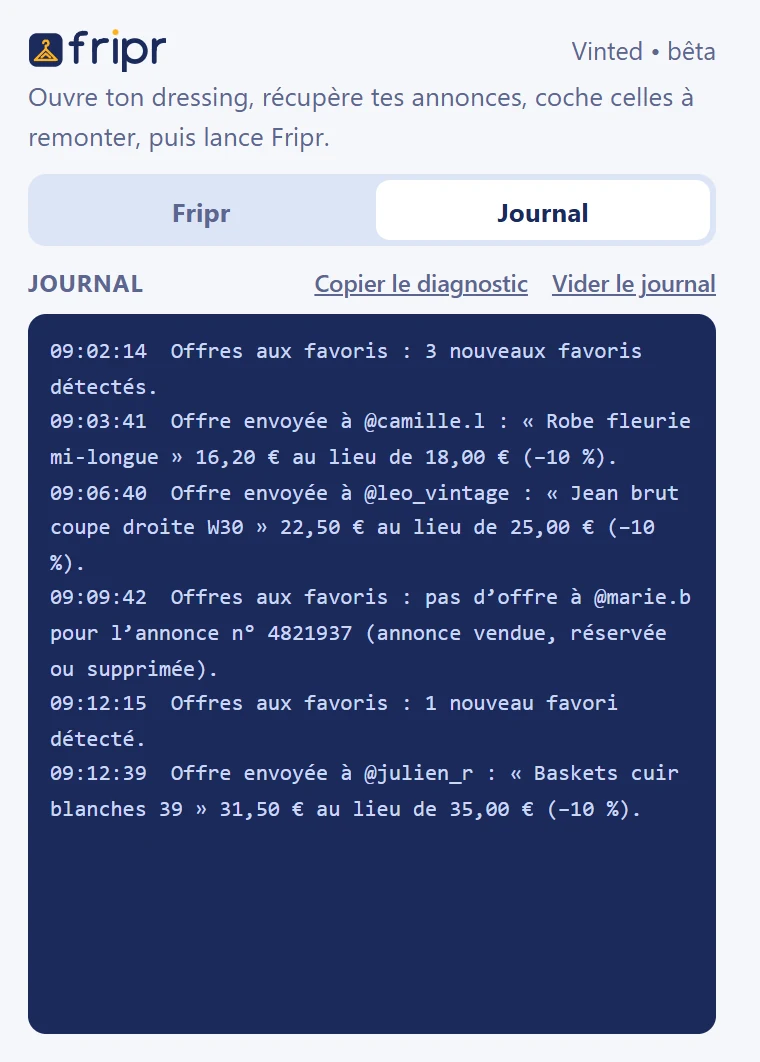
- It records the send in the log and updates today’s summary in the panel.
- One offer every 3 minutes at most, for a natural pace. Waiting favourites are handled in order of arrival.
- Never two offers to the same person for the same listing, even if they remove and re-add their favourite.
- Only new favourites get an offer: those that already existed when you switched the setting on are ignored. If you switch the setting off and on again, Fripr starts again from favourites received after it was switched back on.
- No offer if the listing is sold, reserved or deleted, or if its price is too low for a discount.
- Nothing is sent while reposting: offers resume as soon as the run is over.
- Offers don’t count towards your repost quota.
- As with reposts, the logged-in Vinted account must be linked to your licence (see Quotas and Vinted accounts).
Good to know: a listing reposted by Fripr loses its favourites. If you rely on offers to favourites, leave the advanced setting “Untick listings that have favourites” on: you won’t accidentally repost a listing with an offer in progress.
Track the offers sent
Under the settings, today’s summary shows the number of offers sent and those waiting. The details are in the Log tab: favourites detected, offers sent (to whom, for which listing, at what price) and favourites without an offer, with the reason.
Automatic pause
After 3 failed sends in a row, Fripr pauses the offers as a precaution (Vinted may have changed how it works) and lets you know with a notification. The panel shows the reason in red:
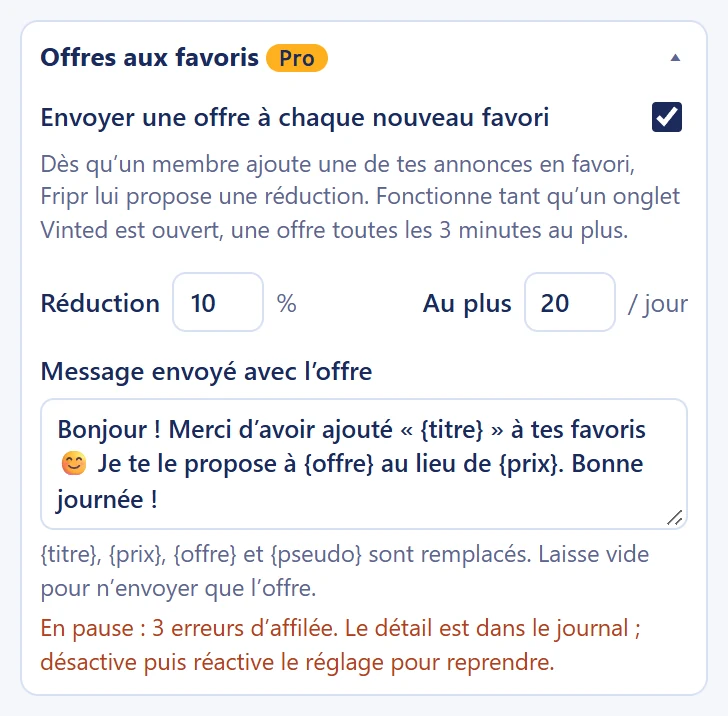
To resume, untick then tick again “Send an offer for every new favourite”. If the pause comes back, copy the diagnostics from the log and send them to us. The pause also applies if the logged-in Vinted account isn’t linked to your licence.
12. Troubleshooting
- “Open your Vinted profile page, the one that shows all your listings”
- Fripr loads listings from your profile page (your wardrobe), not from the home page or a search. Open it, then click “Load my whole wardrobe” again.
- “Reload your wardrobe before starting”
- Fripr needs to know which Vinted account the listings belong to. Click “Load my whole wardrobe” from your profile page, then Start.
- “Your licence is already used with another Vinted account”
- Your licence is linked to another Vinted account. If you did switch accounts, remove the old one on the My account page. Otherwise, your key may have been passed around: generate a new one.
- “The limit of reposts per month has already been reached”
- This month’s quota is used up. Wait until next month or upgrade your plan: the limit is lifted as soon as your key is activated.
- Fripr is waiting on the form without doing anything
- “Publish automatically” is off, or a field couldn’t be filled in: complete it in the open tab and click “Upload”. Fripr watches for publication for 30 minutes, then stops without deleting anything.
- I have a duplicate listing
- This can happen if Fripr was stopped (or the tab closed) just after publication. The log tells you which one to check: delete the old one by hand in your wardrobe.
- Scheduled reposting didn’t start
- Open the “Scheduled reposting” section: the summary gives the reason (wardrobe not loaded yet, quota used up, Vinted account not linked to your licence…). Also check that your browser was open after the planned time, and that no reposting was already in progress: in that case Fripr tries again every 10 minutes.
- No offers go out to new favourites
- Check that a Vinted tab is open and logged in, that no reposting is in progress and that today’s limit hasn’t been reached (summary under the settings). Favourites are read at most every 10 minutes, so the first offer may take a little while. If the panel says “Paused”, see Offers to favourites.
- Something else?
- Copy the diagnostics from the Log tab and write to us at contact@fripr.fr. We reply within 2 working days.